Price match guarantee - find a better deal? We'll Beat it!
.JPG)
Get your phone fixed without leaving your doorstep
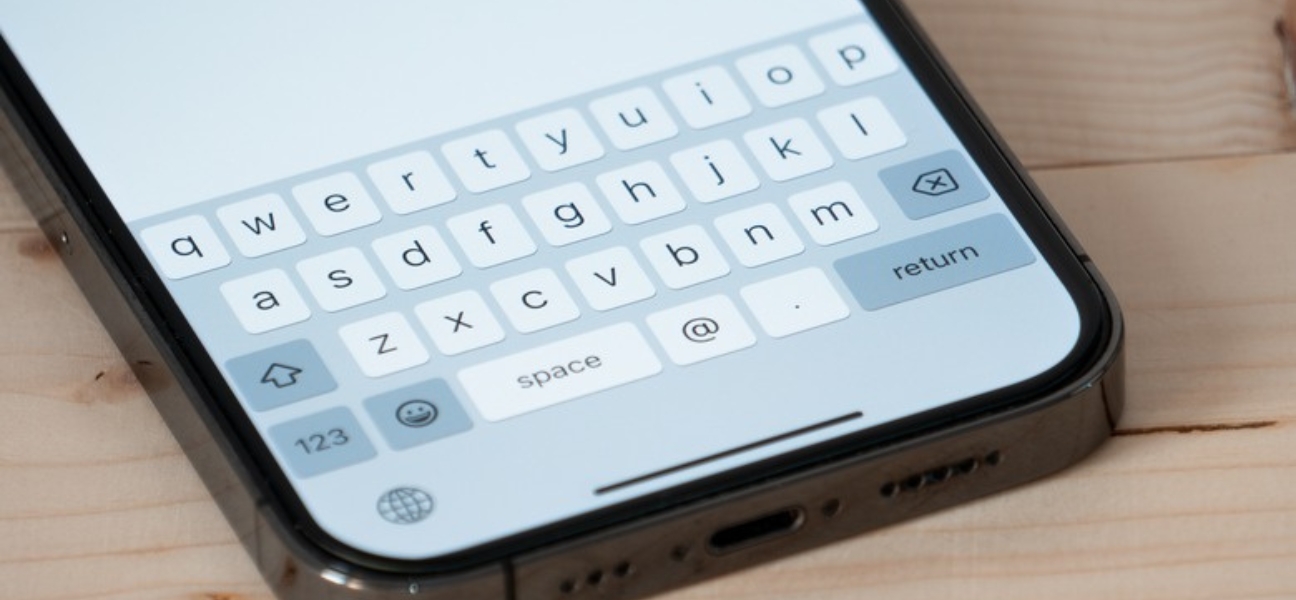
You updated to iOS 26, and suddenly iMessage stopped working. Messages won’t activate, texts won’t send, or your phone number refuses to verify.
If that’s happening, you’re not the only one. Most iOS 26 iMessage issues come from settings, SIM conflicts, activation glitches, or network problems — not a broken iPhone.
This guide walks through the most effective fixes to get iMessage working again. And if the issue goes beyond settings, Pull Up® Phone Repair offers phone repair in Queens NY, with on-site diagnostics for messaging, activation, SIM, and network problems.
iOS updates can temporarily disrupt activation services, especially when your phone needs to reverify your number.
Common causes include:
In most cases, this is not hardware failure. It is usually a settings or verification issue that can be fixed.
Start by checking for a newer iOS version.
Go to:
Settings → General → Software Update
If an update is available, install the newest version.
Apple often fixes activation bugs through smaller follow-up updates. If your iMessage issue started after installing iOS 26, a newer update may already include the fix.
Running outdated software can keep the problem going longer than necessary.
Go to:
Settings → Cellular
Review every SIM or eSIM listed on the device.
If you have an inactive physical SIM:
For inactive eSIMs:
Settings → Cellular → Select inactive eSIM → Delete eSIM
Inactive SIMs can confuse iMessage verification, especially if an old SIM is tied to the same number. Removing unused SIMs helps Apple verify the correct line.
Go to:
Settings → Apps → Messages → Send & Receive
Make sure your phone number is checked.
Next:
iMessage activation can take several hours. In some cases, it may take up to 24 hours, so do not panic if it does not verify instantly.
Go to:
Settings → Tap your name → Sign Out
Enter your Apple ID password if prompted.
After signing out:
Signing out and back in refreshes your Apple authentication. This can clear credential conflicts that stop iMessage from activating properly.
Connect to a stable Wi-Fi network, then try activating iMessage again.
Turn Wi-Fi off temporarily and try using cellular data instead.
If iMessage still will not activate, check whether your carrier is having an outage or service issue. Carrier problems can block SMS verification and activation.
Go to:
Settings → General → Transfer or Reset iPhone → Reset → Reset Network Settings
Resetting network settings:
If iMessage still does not work after these fixes, the problem may be deeper.
Watch for:
At that point, professional diagnostics make more sense than repeating the same settings steps.
iMessage activation is not always instant.
Delays can happen because of:
Sometimes, waiting a few hours after fixing settings is all it takes.
Activation glitches, SIM conflicts, Apple ID issues, and carrier settings are the most common causes.
It can activate quickly, but it may take up to 24 hours.
No. It only removes saved network settings like Wi-Fi passwords and Bluetooth connections.
Yes. Inactive SIM cards or duplicate numbers can interfere with iMessage activation.
Sometimes. Refreshing your Apple ID can resolve authentication issues that block activation.
Most iOS 26 iMessage issues come from activation, SIM, or network settings — not hardware failure. Start by updating iOS, checking inactive SIMs, resetting iMessage, and testing your connection.
If iMessage still will not activate or your phone has SIM, carrier, or network problems, Pull Up® Phone Repair offers mobile iPhone repair in Queens, with on-site diagnostics for messaging issues, activation problems, SIM conflicts, and network troubleshooting.