Price match guarantee - find a better deal? We'll Beat it!
.JPG)
Get your phone fixed without leaving your doorstep
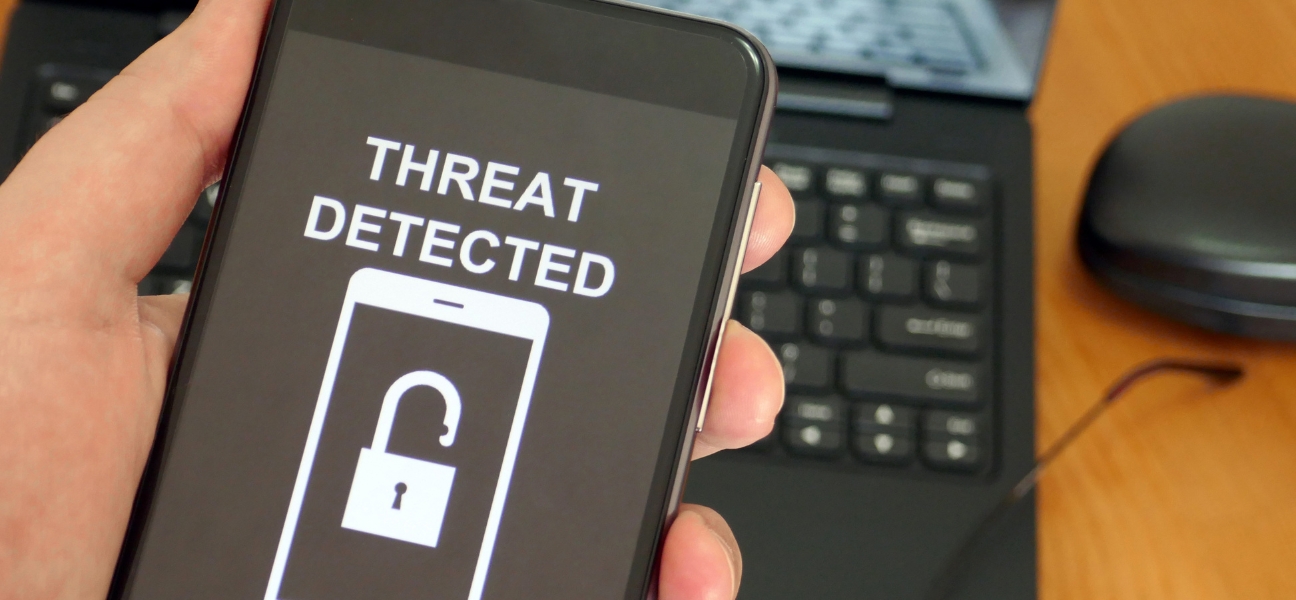
Your phone is overheating, strange pop-ups keep appearing, the battery is draining fast, or the whole device is acting completely out of character. That can make anyone wonder if malware is involved.
Not every glitch means your phone has a virus, but malware can cause many of the same symptoms. The good news is most malware issues can be identified and resolved without replacing your device.
This guide explains how to check your iPhone or Android for malware, remove suspicious apps, and know when it is time to get professional help. If you are still unsure what is causing the issue, Pull Up® Phone Repair offers mobile phone repair in Queens, New York with on-site diagnostics for malware concerns, performance problems, and security issues.
Malware is harmful software designed to disrupt your device, track activity, show unwanted ads, steal information, or interfere with normal performance.
A few terms get used interchangeably, but they are not exactly the same:
Android and iPhone face different levels of risk. Android allows more flexibility, which can increase exposure if apps are downloaded from unsafe sources. iPhones have tighter app controls, but scams, browser hijacks, suspicious profiles, and unsafe links can still cause problems.
Downloading unknown apps, clicking suspicious links, and browsing unsafe sites all increase the risk.
If an app shows up that you do not remember downloading, pay attention.
Apps with unfamiliar names, strange icons, or vague descriptions can be a warning sign. Unauthorized apps may run in the background, collect data, or trigger pop-ups.
Pop-ups that appear outside your browser are suspicious.
Watch for random redirects to unfamiliar websites, fake security warnings, or ads that appear while using normal apps. These are common signs of adware or browser hijacking.
If your battery suddenly dies much faster than normal, malware could be running behind the scenes.
Malicious apps may use background processes constantly, draining battery even when you are not actively using the phone.
A phone can get warm during gaming, charging, or video streaming. That is normal.
But if it overheats with light use or while sitting idle, something may be running in the background. Persistent overheating is worth checking.
Apps closing on their own, random reboots, lag, or freezing can point to software problems.
Malware may overload your phone’s resources, causing it to feel slow or unstable.
A sudden spike in cellular data can be a red flag.
Some malware communicates with outside servers, sends information, or loads ads in the background. Checking data usage can help reveal apps behaving strangely.
Go to Settings → Apps → See All Apps.
Carefully review the list and look for anything unfamiliar. If you find an app you do not recognize, uninstall it.
Safe Mode disables third-party apps, which helps you figure out whether one of them is causing the problem.
To enter Safe Mode:
If your phone works normally in Safe Mode, a downloaded app is likely the issue. Restart normally to exit Safe Mode.
Open the Google Play Store, tap your profile icon, then go to Play Protect → Settings.
Turn on Scan apps with Play Protect.
This allows Android to scan installed apps and warn you about potential threats.
On Samsung devices, go to Settings → Security and Privacy → Auto Blocker.
Turn it on for an extra layer of protection against malicious apps and suspicious activity.
Open the App Library and browse apps alphabetically.
Delete anything unfamiliar. Apple’s App Store restrictions reduce risk, but suspicious apps should still be removed.
Go to Settings → General → VPN & Device Management.
Review installed profiles and delete anything you do not recognize. Rogue profiles can change network settings, redirect traffic, or affect device behavior.
Go to Settings → General → Software Update → Automatic Updates.
Enable:
Keeping iOS current helps protect against known vulnerabilities.
Go to Settings → Apps, select the suspicious app, then tap Uninstall.
Press and hold the app icon, tap Remove App, then select Delete App.
Removing suspicious apps can stop unauthorized background processes, reduce battery drain and pop-ups, and lower the risk of further data exposure.
Android users can rely on:
iPhone security features include:
Most users already have strong safeguards built into their phones. Those tools work best when your software is current and settings are enabled.
Use the App Store or Google Play Store.
Avoid sideloading unknown apps or downloading software from random websites.
Watch out for suspicious emails, unexpected text messages, fake delivery notices, and urgent-looking links.
If something feels off, do not tap it.
Install updates when they are available.
Security patches fix known threats and reduce the chance of malware exploiting old vulnerabilities.
Limit access to people you trust.
Someone else using your phone can accidentally install unsafe apps or change settings.
Antivirus and security tools can provide extra monitoring, especially for Android users who download a lot of apps or use their phone for sensitive accounts.
Malware symptoms overlap with other phone issues.
Your phone may be acting strange because of:
If you remove suspicious apps and the problem continues, the cause may not be malware at all.
The issue may need professional diagnostics if:
At that point, it is better to test the device properly than keep guessing.
Unknown apps, excessive pop-ups, unusual battery drain, overheating, crashes, and unexplained data usage can all be warning signs.
Yes, although it is less common due to Apple’s security protections.
It scans apps for threats and alerts you to potentially harmful applications.
Many users rely on built-in protections, but additional security apps can offer extra peace of mind.
In many cases, yes. However, it should be treated as a last resort after backing up important data.
Unusual behavior does not automatically mean your phone has malware, but it should never be ignored. Review your apps, use built-in security tools, and practice safe browsing habits before assuming the worst.
If your phone is still overheating, draining battery, crashing, or acting suspicious after cleanup, Pull Up® Phone Repair offers mobile iPhone repair in Queens with on-site diagnostics for malware concerns, performance problems, battery drain, overheating, and security-related issues.