Price match guarantee - find a better deal? We'll Beat it!
.JPG)
Get your phone fixed without leaving your doorstep
Your phone says storage is full, your battery drains fast, and everything feels cluttered — but when you scroll your home screen, you can’t even find half the apps taking up space. Sound familiar? That’s because many apps aren’t sitting out in plain sight. Some are hidden, disabled, or buried deep in folders you forgot existed.
Knowing exactly what’s installed on your phone matters more than people realize. Hidden apps can slow performance, eat up storage, drain battery in the background, and even create security risks if they haven’t been updated in a while.
If your phone already feels sluggish or disorganized, a quick cleanup can help — and when it doesn’t, that’s where expert help comes in. Pull Up® Phone Repair offers fast, mobile iPhone repair in Baltimore, diagnosing storage, performance, and app-related issues right at your location.
Why You Might Not See All Your Apps
Not every app shows up on your home screen.
Some apps are hidden inside folders or removed from the home screen entirely. Others may be disabled, restricted, or designed to run quietly in the background. System apps often don’t appear like regular apps at all, even though they still take up space.
When too many apps pile up — especially ones you don’t use — your phone can slow down, freeze, overheat, or behave unpredictably. Finding everything that’s installed is the first step toward fixing that.
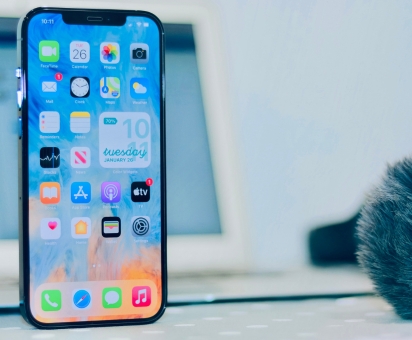
How to See All Apps on an iPhone
Swipe left past your last home screen page to reach the App Library. This is where every installed app lives — even ones hidden from view.
You can scroll through categories or use the search bar at the top to find apps instantly. Tapping an app opens it directly without adding it back to your home screen.
Another way to see everything installed is through Settings.
Open Settings, then scroll past default sections like General and Display & Brightness. Near the bottom, you’ll see a full list of installed apps. This view is especially helpful for spotting apps that are taking up large amounts of storage.
If you’re looking for apps you deleted in the past, the App Store keeps a record.
Open the App Store, tap your profile icon, then select Purchased. The “Not on this iPhone” section shows apps you’ve downloaded before but removed — useful for reinstalling something you forgot about.
How to See All Apps on an Android Phone
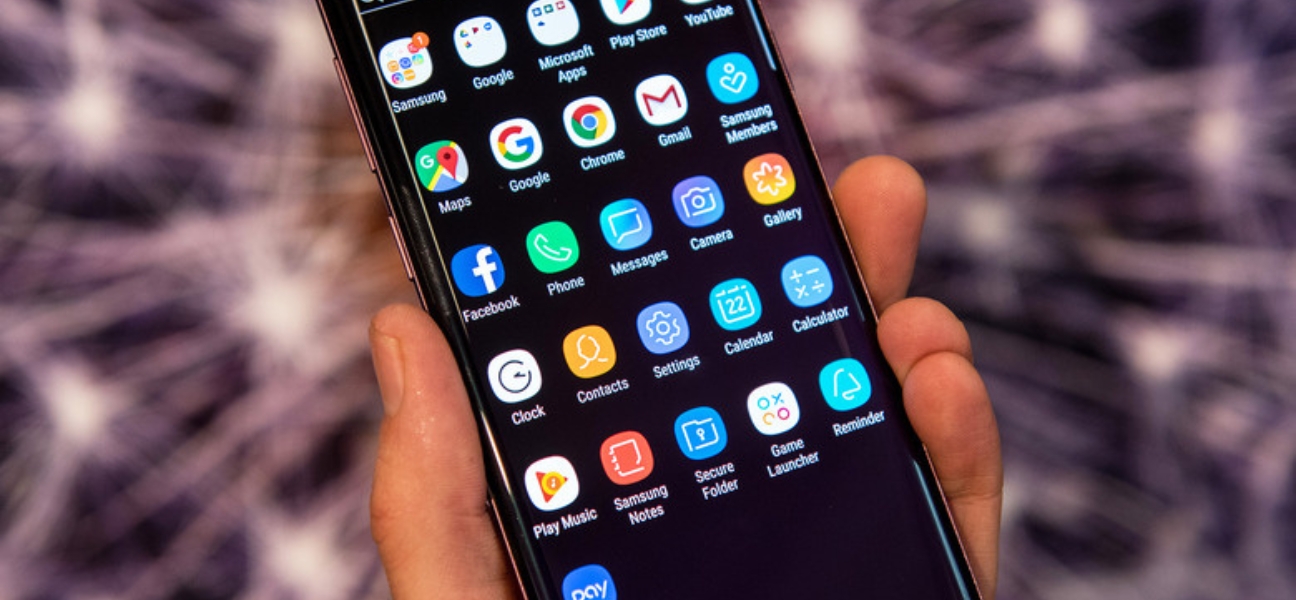
Swipe up from the bottom of the home screen to open the App Drawer. This displays all installed apps in one place, regardless of whether they’re on your home screen.
You can scroll manually or use the search bar to find specific apps.
Open Settings, tap Apps, then choose See all apps or App info. This list includes installed apps, system apps, and any apps that are disabled.
Some Android devices allow apps to be hidden.
This is often where forgotten apps are hiding.
To see everything tied to your Google account, open the Play Store, tap your profile icon, and select Manage apps & device. Under the Manage tab, you can view installed and previously removed apps.
Once you’ve found all your apps, cleaning things up is easy.
Delete apps you don’t use to free up space and improve performance. Group similar apps into folders to reduce clutter. Clearing cached data can reclaim storage without deleting apps entirely. On iPhone, enabling Offload Unused Apps removes apps you don’t use while keeping their data saved.
A little organization goes a long way.
Apps don’t just sit there. Many run background processes even when you’re not using them.
Too many apps can lead to slower performance, faster battery drain, storage issues, and overheating. Forgotten apps may also miss security updates, increasing the risk of malware or privacy issues.
If your phone feels unstable, excess apps are often part of the problem.
If your phone is still slow after deleting apps, or storage fills up again almost immediately, there may be more going on.
Warning signs include apps crashing or refusing to open, constant freezing, overheating, or charging problems. These issues often point to hardware trouble or deeper system problems that need professional diagnosis.
Finding all the apps installed on your phone helps restore speed, free up storage, and keep your device secure. Regular app cleanups prevent clutter and stop small issues from turning into bigger problems.
If your phone still struggles after cleaning things up, don’t guess. Pull Up® Phone Repair provides fast, mobile iPhone repair in Baltimore, bringing expert diagnostics and repairs directly to you. No waiting. No hassle. Just a phone that works the way it should.