Price match guarantee - find a better deal? We'll Beat it!
.JPG)
Get your phone fixed without leaving your doorstep
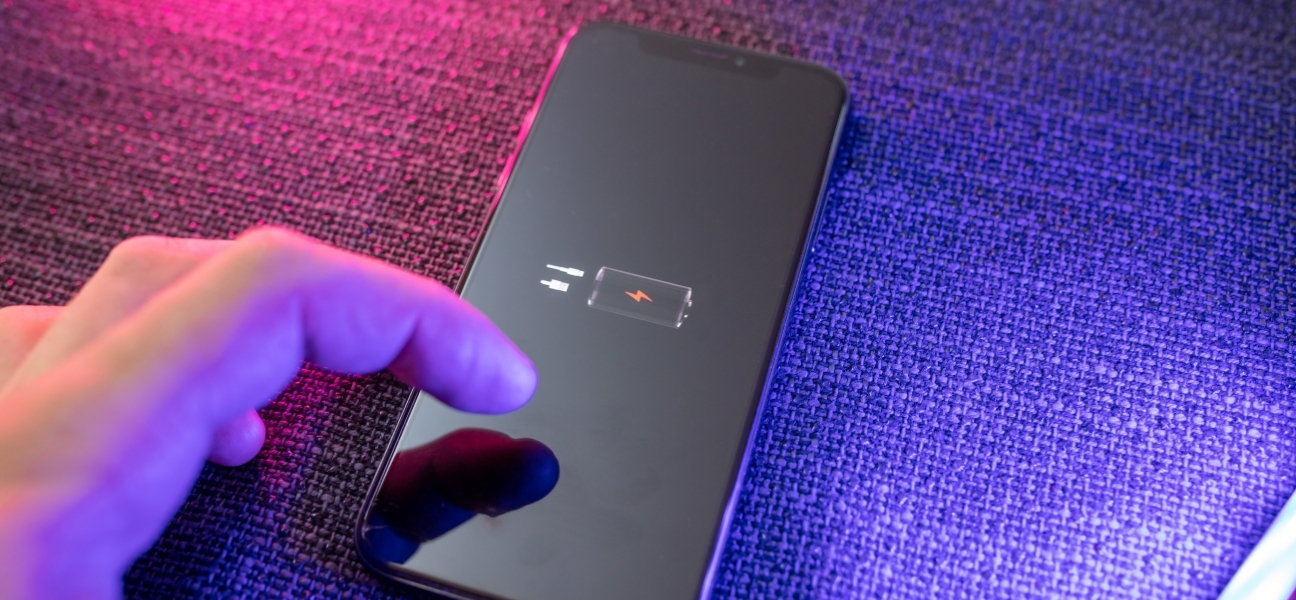
It’s the worst feeling — you press the power button and get nothing. No screen. No vibration. No response at all. Your phone looks completely dead, and suddenly everything you rely on it for comes to a stop.
No calls. No texts. No work apps. No directions. No two-factor codes. It’s incredibly disruptive, especially when your phone is part of your daily routine.
Here’s the good news: a phone that won’t turn on isn’t always permanently broken. In many cases, the issue is something simple — and fixable — if you know what to check first. And when it’s not, you don’t have to guess. Pull Up® Phone Repair offers fast, mobile iPhone repair in Baltimore, diagnosing dead phones on-site before you spend money replacing them.
There are a few common reasons a phone appears completely dead.
A drained or failing battery is the most frequent culprit. If the battery can’t hold a charge, the phone won’t respond at all.
Water or physical damage can also cause internal problems — even if there’s no visible crack or sign of impact. A small amount of moisture or a hard drop can damage components you can’t see.
Software crashes or failed updates can freeze a phone so completely it looks powered off, even when it isn’t.
Finally, charging-related issues like a damaged cable, dirty charging port, or faulty power source can make it seem like the phone won’t turn on when it’s simply not charging.
Before assuming the worst, try these quick steps:
Hold the power button longer than usual. Some phones need 15–30 seconds before they respond.
Try a force restart using your device’s button combination.
Plug the phone into a known-good charger and let it sit for 15–25 minutes before touching anything.
Remove the case, SIM card, SD card, and any accessories. Sometimes accessories or trapped heat interfere with power.
These simple steps fix more “dead” phones than people expect.
A frozen phone can look completely dead even though it still has power.
On iPhone:
Press and quickly release Volume Up, then Volume Down, then hold the Power button until the screen turns on.
On Android:
Press and hold the Power button. On some models, you may need to hold Power + Volume Down together.
Force restarting clears crashes that prevent the screen from turning on.
Plug the phone in and wait — don’t try to power it on right away.
Watch for a battery icon, vibration, or screen flicker. If you see anything at all, let it charge longer before trying again.
Common charging issues include:
Any of these can stop power from reaching the battery.
Dust, lint, and debris build up inside charging ports over time — especially if you carry your phone in a pocket.
A blocked port can prevent charging completely, making the phone appear dead even when the battery is fine. Use a flashlight to inspect the port before assuming the phone is beyond repair.
Safe Mode temporarily disables third-party apps that may be causing system crashes.
To enter Safe Mode on most Android phones:
If the phone turns on in Safe Mode, an app is likely causing the problem. Restarting exits Safe Mode.
Remove the case and inspect the phone closely.
Shine a light across the screen to look for faint cracks or liquid marks. Try calling the phone to see if it vibrates or rings even if the screen stays black.
Water exposure is a common “silent killer” — damage may not show up immediately but can prevent the phone from powering on later.
Only attempt this if nothing else works.
A factory reset erases nearly all data, so it should never be the first step.
For iPhones, connect the device to a computer and use Recovery Mode through Finder or iTunes.
For Android phones, use the hardware button reset process for your model.
This step is best viewed as a last attempt before replacement, not an early fix.
If your phone still shows no signs of life, even while charging, you may be dealing with a hardware issue.
Warning signs include:
At this point, professional diagnosis is the safest and fastest way forward.
Many phones labeled “dead” are completely repairable.
Battery failures, charging port issues, and even board-level problems are common — and far cheaper to fix than buying a new device. A proper diagnosis can save hundreds of dollars.
Mobile repair also saves time. No shipping. No waiting days for a quote. No guessing.
A phone that won’t turn on feels like a disaster, but it’s often recoverable with the right steps and a calm approach. Trying a few basic checks first can make all the difference.
If your phone still won’t power on, don’t give up or replace it blindly. Pull Up® Phone Repair provides fast, mobile iPhone repair in Baltimore, bringing expert diagnostics and repairs directly to you. We come to you, fix it on-site, and get you back up and running as quickly as possible.